


In today’s hyper-connected world, working remotely offers freedom, flexibility, and comfort. But this convenience comes with a hidden cost, which are increased cybersecurity risks. Whether you’re a freelancer juggling multiple clients or a remote employee working across time zones, chances are you’re more vulnerable than someone sitting in a company office behind firewalls and monitored networks.
As someone who works independently, your digital security is your responsibility. Cybercriminals know this. That’s why remote workers and freelancers are increasingly targeted by phishing scams, ransomware attacks, and data breaches. In this essay, we’ll go through a practical, easy-to-follow cybersecurity checklist to help you stay protected, focused, and in control.
1. Secure Your Wi-Fi Network
The first place to start? Your home Wi-Fi. A surprising number of remote workers still use default router passwords or leave their networks open. That’s like leaving your front door unlocked.
What to do:
- Change your router’s default login credentials.
- Use a strong Wi-Fi password (12+ characters with letters, numbers, and symbols).
- Enable WPA3 encryption if available.
- Hide your SSID (network name) if you’re in a crowded area.
A secure connection ensures that nobody nearby can snoop on your work or hijack your internet.
2. Use Strong, Unique Passwords for Everything
We get it—passwords are a pain. But reusing the same password across platforms is asking for trouble. If just one account is compromised, hackers can try it on everything else. It’s called credential stuffing, and it’s very common.
What to do:
- Use a password manager (like Bitwarden, 1Password, or NordPass) to store and generate strong, unique passwords.
- Avoid using names, birthdays, or dictionary words.
- Turn on two-factor authentication (2FA) for all major accounts.
3. Be Smart with Public Wi-Fi
Free Wi-Fi in cafes, airports, or coworking spaces may be convenient, but they’re often insecure. Anyone on the same network could potentially spy on your traffic or inject malware.
What to do:
- Use a VPN (Virtual Private Network) whenever connecting to public Wi-Fi. It encrypts your data and masks your location.
- Avoid logging into sensitive accounts (banking, client portals) on public networks unless protected by a VPN.
- Disable auto-connect on your device so it doesn’t automatically join untrusted networks.
4. Update Your Software and Devices Regularly
Those annoying software updates you keep ignoring? They usually fix critical security vulnerabilities. Cybercriminals often exploit known flaws in old systems.
What to do:
- Set your computer and phone to update automatically.
- Regularly update browsers, antivirus software, Zoom, Slack, etc.
- Uninstall apps and browser extensions you no longer use—they can be weak points.
5. Know the Signs of Phishing
Phishing is one of the top methods hackers use to steal information. They disguise emails to look like real companies—your bank, a client, or even your boss—and trick you into clicking malicious links or giving up passwords.
What to do:
- Double-check sender email addresses (they often look similar to legit ones).
- Hover over links to see where they lead before clicking.
- Don’t download attachments unless you’re expecting them.
- Trust your gut—if something feels off, it probably is.
6. Use Cloud Storage Carefully
Cloud storage platforms like Google Drive, Dropbox, and iCloud are super handy, but don’t assume they’re automatically secure.
What to do:
- Don’t share files or folders with open links—use access restrictions.
- Turn off link sharing after use.
- Always log out of public or shared computers.
- Enable 2FA on all cloud accounts.
7. Backup Your Work—Frequently
Imagine losing a week’s worth of client files to a ransomware attack. It happens more often than you think. Backups are your safety net.
What to do:
- Use the 3-2-1 rule: 3 copies of your data, 2 on different devices, 1 offsite (e.g., cloud).
- Automate daily or weekly backups.
- Test your backups occasionally to make sure they work.
8. Lock Your Devices When Not in Use
Even in your own home, make it a habit to lock your laptop and phone. You never know who might be visiting or walking by. Also, if you’re in a shared space, this becomes non-negotiable.
What to do:
- Set an automatic screen lock after a few minutes of inactivity.
- Use biometrics (fingerprint, face ID) or strong PINs for access.
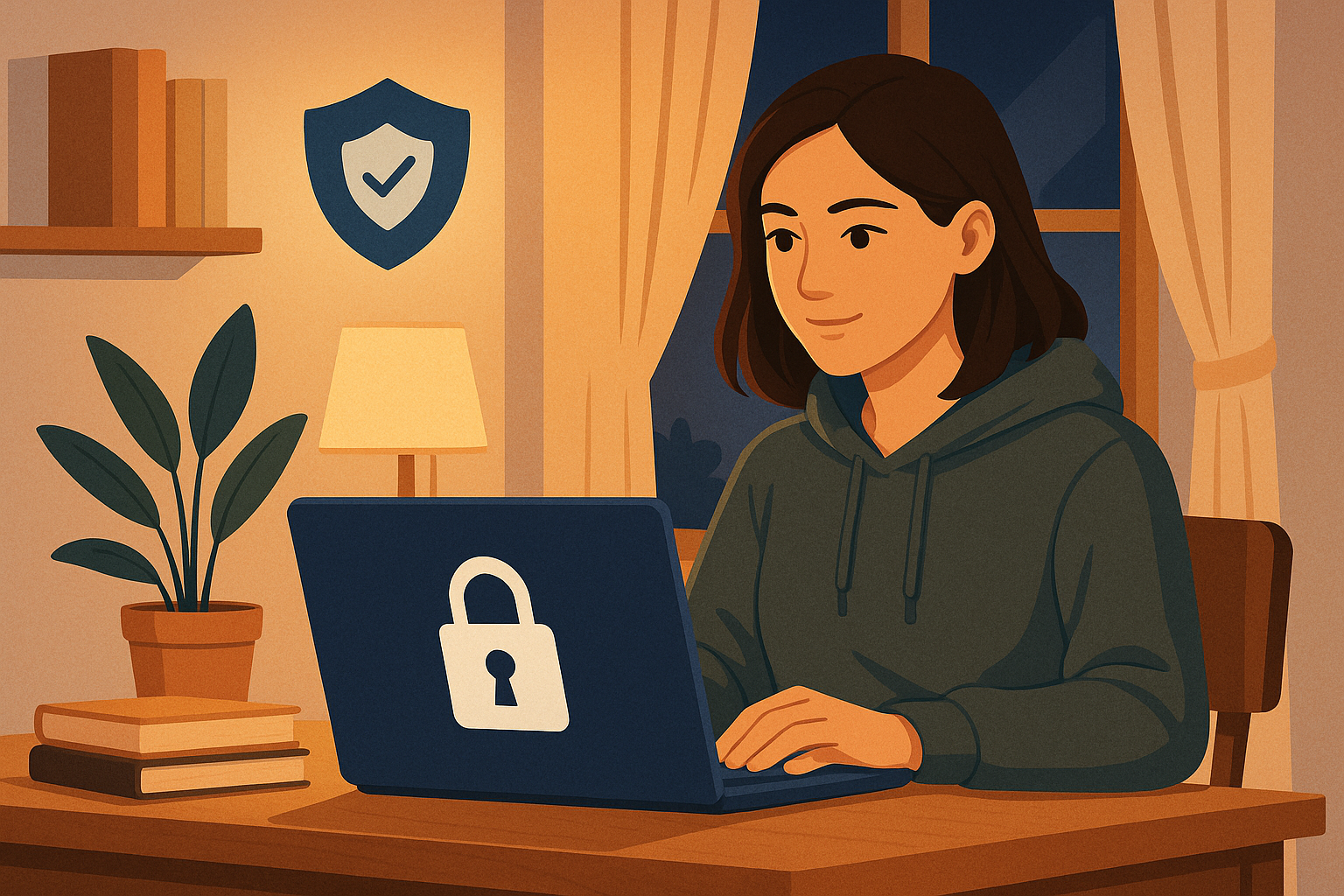
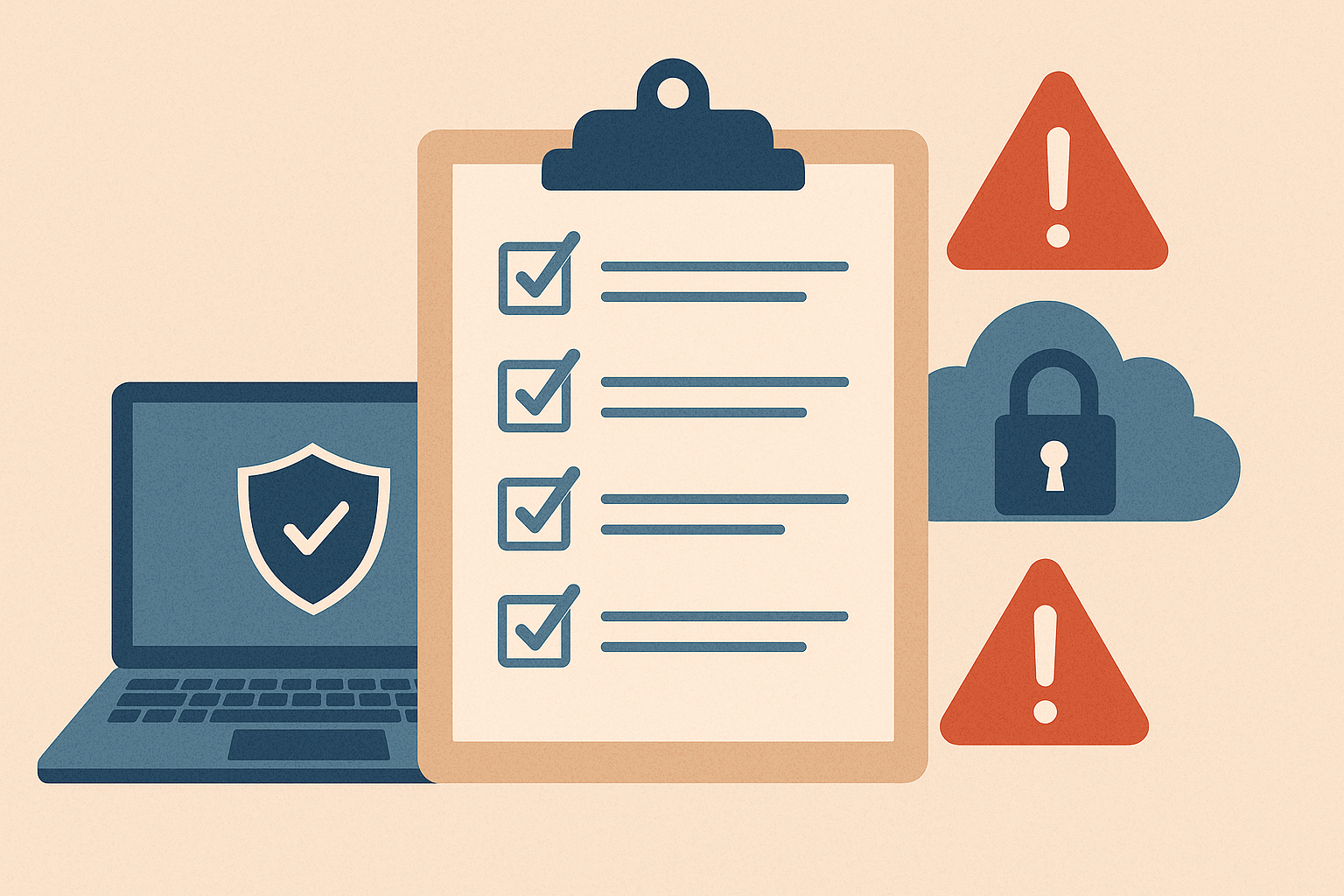
You don’t have to be a tech genius to stay safe online. A few smart habits and the right tools can go a long way. As a freelancer or remote worker, your computer is your office, your client portal, and your personal vault. Keeping it secure isn’t just good practice—it’s essential to your success and reputation.
Don’t wait until something goes wrong. Take 30 minutes this week to go through this checklist. Your future self will thank you.